Automate Intune Device Categories via User Group Membership

Assign Intune device categories to devices based on user security group membership through Microsoft Graph
Some Intune scenarios are better served by device-based targeting rather than user-based targeting. However, Intune does not natively provide a way to automatically map user group membership to device group membership. As a result, administrators are often left managing device assignments manually.
One effective way to bridge this gap is by using Intune device categories. Device categories can be leveraged in Entra ID dynamic device groups, enabling automated device group membership based on category values. Unfortunately, managing device categories manually does not scale, especially when devices change users or when users move between roles.
In this post, we’ll walk through a fully automated, lifecycle aware approach that:
- Assigns an Intune device category when the primary user is a member of a specific Entra ID security group
- Removes the device category when the user is no longer a member of that group
- Is safe to run repeatedly (idempotent, no duplication or drift)
- Uses Microsoft Graph PowerShell
This approach is ideal when you want device-based targeting driven by user group membership.
Note: Only one device category can be assigned to a device at any given time.
Preparation steps
Before running the script, collect the following information.
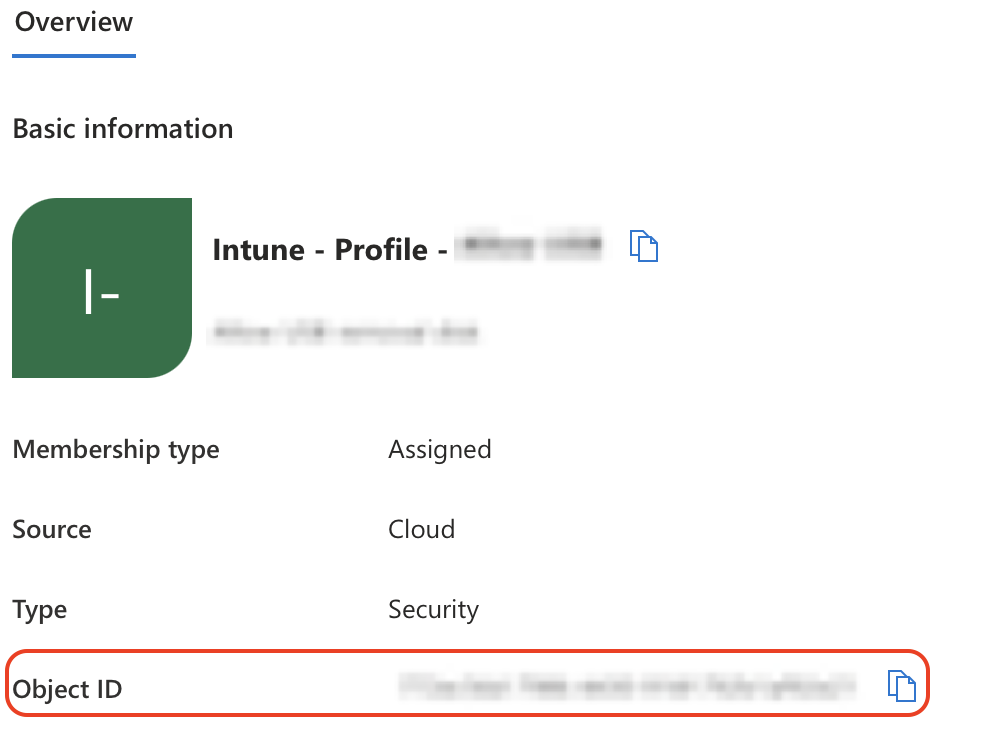
1. Entra ID User Group Object IDs
Identify the Object ID of each user security group you want to map to a device category.
2. Intune Device Category Names
Identify the exact display names of the Intune device categories you want to assign.
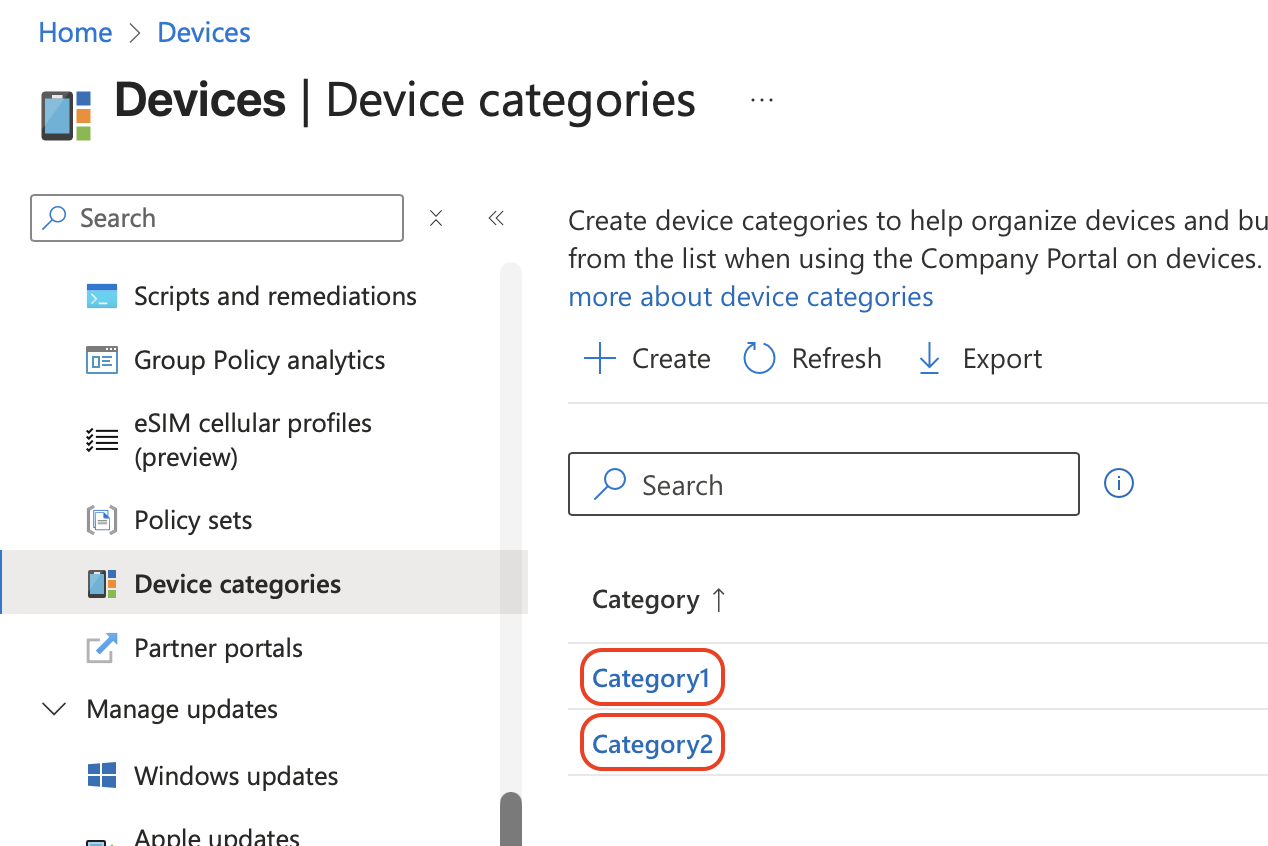
Note: The Entra ID user groups and Intune device categories must already exist before running the script.
Once collected, decide which user group maps to which device category and populate the variables section in the script below.
Script overview
This script should be run on a schedule to ensure device categories remain accurate over time. You can host it on:
- A scripting server
- Azure Automation
- Any scheduled PowerShell execution environment
The script performs the following actions:
- Retrieves device category IDs from Intune
- Retrieves users from specified Entra ID security groups
- Retrieves Intune-managed devices and their primary users
- Currently targets all platforms (add filters if you want to limit to Windows, Android, etc.)
- Assigns device categories where missing
- Removes device categories when users are no longer members of the group
Note: If a user is a member of multiple mapped groups, the last mapping listed in the variables section will take precedence.
# ================================================================
# Variables - User group to device category mapping
# ================================================================
$Mappings = @(
    @{ GroupId = "11111111-aaaa-bbbb-cccc-111111111111"; CategoryName = "Category1" },
    @{ GroupId = "22222222-dddd-eeee-ffff-222222222222"; CategoryName = "Category2" }
)

# ================================================================
# Ensure Microsoft.Graph modules are installed and loaded
# ================================================================
foreach ($mod in @(
    "Microsoft.Graph.DeviceManagement",
    "Microsoft.Graph.Users",
    "Microsoft.Graph.Groups"
)) {
    if (-not (Get-Module -ListAvailable -Name $mod)) {
        Install-Module $mod -Scope CurrentUser -Force
    }
    Import-Module $mod
}

Connect-MgGraph -Scopes `
    "DeviceManagementManagedDevices.ReadWrite.All",
    "Group.Read.All",
    "User.Read.All" `
    -NoWelcome

# ================================================================
# Process each group-to-category mapping
# ================================================================
foreach ($Mapping in $Mappings) {

    $GroupId        = $Mapping.GroupId
    $TargetCategory = $Mapping.CategoryName

    Write-Host "`nProcessing Group: $GroupId → Category: $TargetCategory" -ForegroundColor Cyan

    # ------------------------------------------------------------
    # Step 1: Resolve device category ID
    # ------------------------------------------------------------
    $CategoryId = Get-MgDeviceManagementDeviceCategory -All |
        Where-Object DisplayName -eq $TargetCategory |
        Select-Object -ExpandProperty Id

    if (-not $CategoryId) {
        Write-Warning "Category '$TargetCategory' not found — skipping"
        continue
    }

    # ------------------------------------------------------------
    # Step 2: Get UPNs of users in the group
    # ------------------------------------------------------------
    $GroupUserUPNs = Get-MgGroupMember -GroupId $GroupId -All |
        Where-Object { $_.AdditionalProperties.'@odata.type' -eq '#microsoft.graph.user' } |
        ForEach-Object {
            (Get-MgUser -UserId $_.Id).UserPrincipalName
        }

    if (-not $GroupUserUPNs) {
        Write-Warning "No users found in group — skipping"
        continue
    }

    # ------------------------------------------------------------
    # Step 3: Retrieve Intune-managed devices
    # ------------------------------------------------------------
    $ManagedDevices = Get-MgDeviceManagementManagedDevice -All -ErrorAction SilentlyContinue |
        Where-Object {
            $null -ne $_.UserPrincipalName -and
            $_.UserPrincipalName -ne ""
        }

    # ------------------------------------------------------------
    # Step 4: Assign category where required
    # ------------------------------------------------------------
    $DevicesToAssign = $ManagedDevices | Where-Object {
        $_.UserPrincipalName -in $GroupUserUPNs -and
        $_.DeviceCategoryDisplayName -ne $TargetCategory
    }

    foreach ($Device in $DevicesToAssign) {

        $Body = @{
            "@odata.id" = "https://graph.microsoft.com/beta/deviceManagement/deviceCategories/$CategoryId"
        } | ConvertTo-Json -Depth 3

        try {
            Invoke-MgGraphRequest -Method PUT `
                -Uri "https://graph.microsoft.com/beta/deviceManagement/managedDevices/$($Device.Id)/deviceCategory/`$ref" `
                -Body $Body `
                -ContentType "application/json"

            Write-Host "Assigned '$TargetCategory' → $($Device.DeviceName)" -ForegroundColor Green
        }
        catch {
            Write-Warning "Failed to assign category to $($Device.DeviceName): $_"
        }
    }

    # ------------------------------------------------------------
    # Step 5: Remove category where no longer applicable
    # ------------------------------------------------------------
    $DevicesToRemove = $ManagedDevices | Where-Object {
        $_.DeviceCategoryDisplayName -eq $TargetCategory -and
        $_.UserPrincipalName -notin $GroupUserUPNs
    }

    foreach ($Device in $DevicesToRemove) {
        try {
            Invoke-MgGraphRequest -Method DELETE `
                -Uri "https://graph.microsoft.com/beta/deviceManagement/managedDevices/$($Device.Id)/deviceCategory/`$ref"

            Write-Host "Removed '$TargetCategory' → $($Device.DeviceName)" -ForegroundColor Yellow
        }
        catch {
            Write-Warning "Failed to remove category from $($Device.DeviceName): $_"
        }
    }
}
Dynamic device group
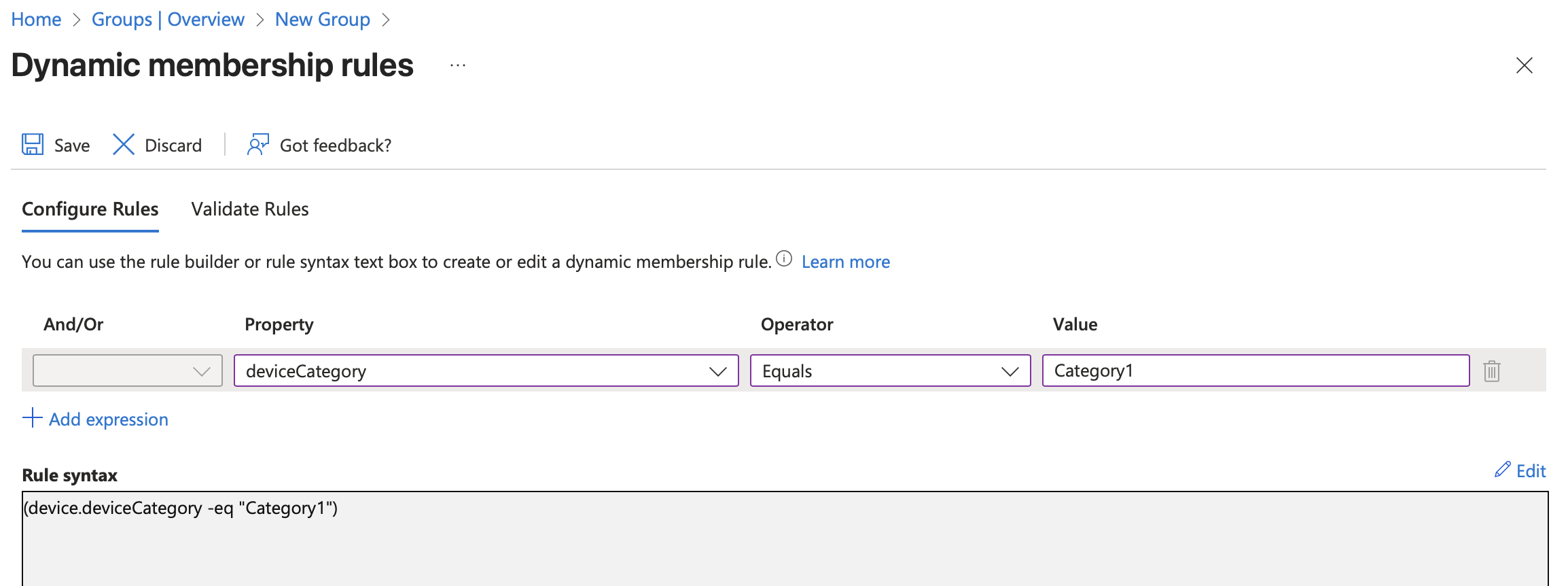
The final step is to create an Entra ID Security Group configured as a Dynamic Device group.
Use the following membership rule to automatically populate the group based on the assigned device category:
(device.deviceCategory -eq "Category1")