Apple iOS software update OTA

Overview on how software OTA (Over The Air) works on iOS devices
I often get asked by clients or colleagues if they can update their iPhones or iPads with the latest Apple software released over cellular instead of requiring a WiFi connection. The answer is yes, it is possible, and this article will explain why not all users are getting the update over cellular at the same time. It is important to note that only minor iOS upgrades can be done over cellular network, major iOS upgrades (e.g. 14.x to 15.0) still require a WiFi connection.
Background
iOS devices check-in with the Apple server once every 7 days (daily for emergency update) to see if a new standard update is available. The time the device checks-in within this 7 day period will be established on first boot. This mechanism has been put in place to avoid having devices connecting all at the same time and overflow the Apple servers. In addition, Apple will try to find a time where the device is plugged-in to power and connected to WiFi (WiFi is always the preferred mode of transport) before downloading the update. If WiFi isn’t available, Apple will check the carrier bundle to see if downloads over cellular data are allowed. The good news is, Telstra did not implement any download size limit or restrictions over cellular for software updates.
Timelines
So why can’t we download over cellular the latest software a soon as it gets released by Apple? It all comes down to how the device/user checks for updates, which dictates how quickly you can download it over cellular.
Scenario 1: non user initiated download
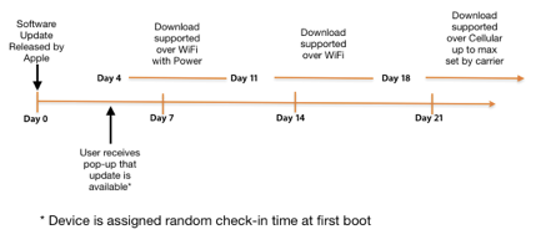
The device will randomly check for an update within the first 7 days, at that point download is only possible when the device is plugged-in to power and connected to WiFi for the next 7 days (brings us up to day 14), then the requirement to be plugged-in to power is dropped for the next 7 days (brings us up to day 21), finally download over cellular is allowed. So based on the random number (0 to 7) allocated to the device for update check-in, it can take between 14 and 21 days for the download to be allowed over cellular once released. At any stage of the process the user must acknowledge and accept the update before it is installed on the device.
Scenario 2: user initiated download
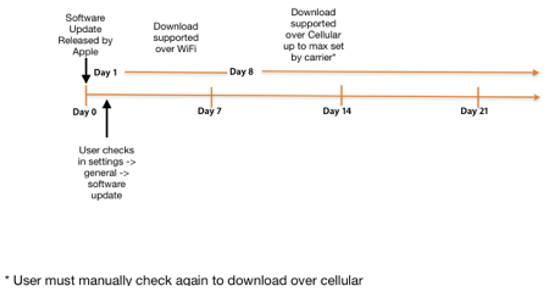
User checks in settings if an update is available. If an update is found, Apple will try to auto-download it when the device is plugged-in to power and connected to WiFi for the next 7 days. If the auto-download cannot be completed, the user can still download the update manually while connected to WiFi (plugged-in to power not required) within the 7 days. After the 7 day window expires, the user is then allowed to download the update over cellular by doing a manual check again in settings. At any stage of the process the user must acknowledge and accept the update before it is installed on the device.
Trigger updates via MDM
iOS updates can be triggered on supervised devices via an MDM command and most MDM vendors have implemented this function. This allows IT admins to deploy the latest (or a specific) version to their managed devices. If the OS update command is sent to the managed device while the device is locked with a passcode, the download of the update will only occur in the background the next time the device is unlocked. It is important to note however that the conditions described in the scenario 2 above still apply and download over cellular will only occur after the 7 day window expires. Once the download is complete, the user will receive a pop up with the option to either “Install Now” or “Later”. If “Later” is selected, the OS update will keep requesting to install and the user will be allowed to defer the update up to 3-4 times before requiring the user to input their passcode to progress with the update.